Phone Clover
Early accessSet up with you, not self-serve

How Phone Clover setup works

Phone Clover is a private HighLevel app in early access. You request access, we send the install link, and we go through each step with you until your team makes its first call and sends its first text.

  1. 01Request accessYou and us
  2. 02Install in HighLevelYou
  3. 03Connect TelnyxYou, with us
  4. 04Add or bring numbersYou, with us
  5. 05Routing and repsYou, with us
  6. 0610DLC and go liveYou, then the carriers

What you need ready

Have these to hand before we start. None of it is unusual, but gathering it first keeps each step short.

HighLevel admin access

An agency owner or a sub-account admin. Reps never see the install.

A Telnyx account

With a payment method. Hosted SMS needs a verified Telnyx account; Telnyx explains its levels in its portal.

Your numbers plan

Numbers already in Telnyx, a landline or VoIP number to text-enable, or the numbers you want to buy.

Business details for 10DLC

Legal business name, address and EIN, what you text people about, 2 to 5 sample messages and how people opt in.

Your team and your hours

Who takes calls, whether incoming calls ring everyone or go round robin, your business hours and a forwarding number.

A desktop browser and a microphone

For each rep who calls. Calling runs in the browser inside HighLevel, not in the mobile app.

Six steps, set up with you

Each step shows what you do, what we do, and the screen you will see. How long it all takes depends mostly on Telnyx and carrier reviews, so we do not put a clock on it.

01StartStep 1 of 6

Request access

Tell us who you are and how you use the phone today. We read every request and reply by email.

You do

  • Fill in the short form: name, work email, company, number of sub-accounts, what you use today

We do

  • Reply by email and check that Phone Clover fits your team
  • Agree with you which sub-account goes first
Request early access
What we ask
Name required
Work email required
Company optional
Number of sub-accounts 1, 2-5, 6-20, 21-100, 100+
What do you use today? optional
The fields on the request form at /get-started/.
02InstallStep 2 of 6

Install in HighLevel

Phone Clover is not on the Marketplace, so the install runs from a private link. It uses HighLevel's own authorization screen.

You do

  • Open the install link and approve the permissions
  • Choose agency level or a single sub-account

We do

  • Send the install link
  • Confirm the install came through and switch the phone on for your sub-account
Install guide
Screen
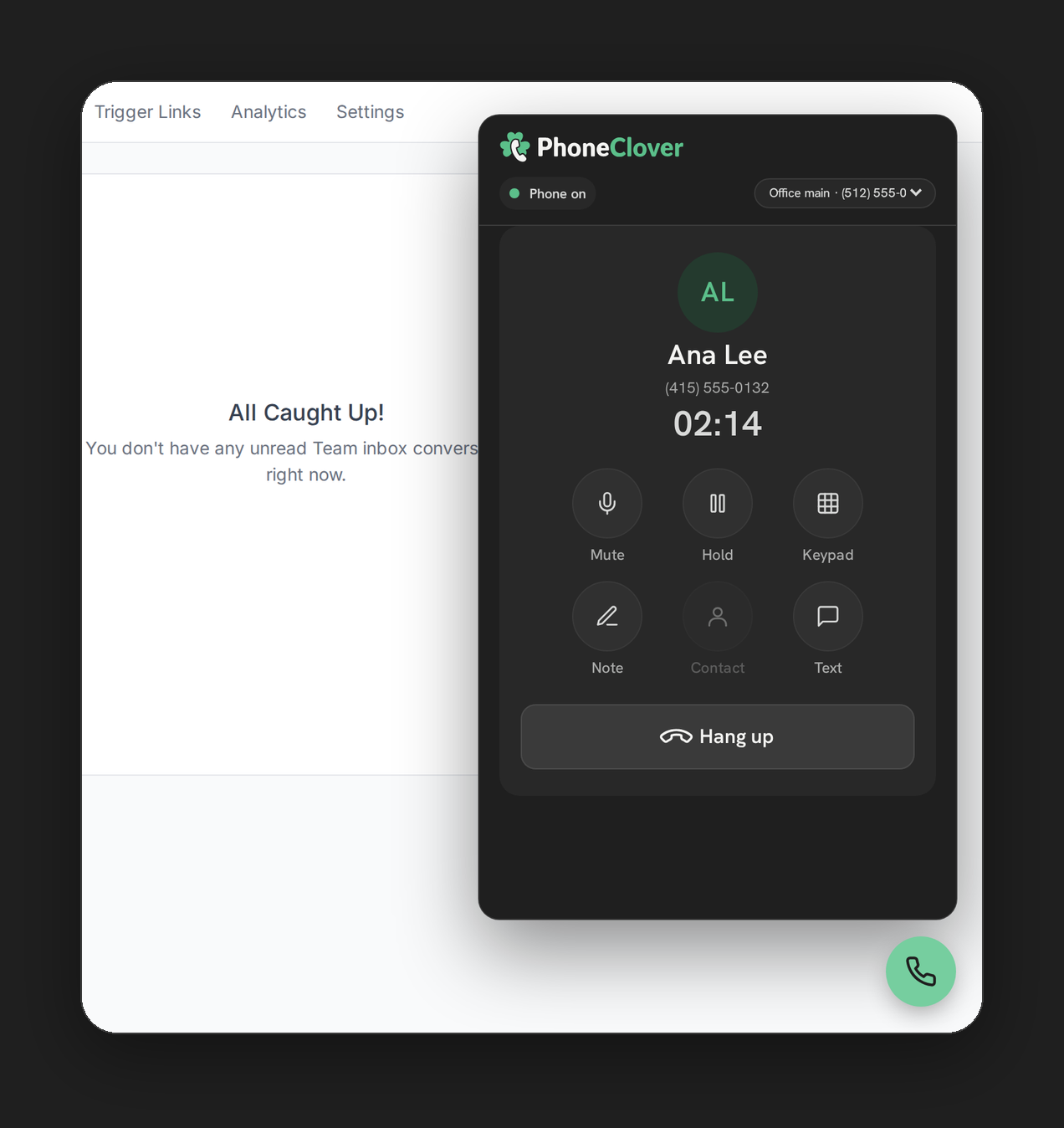
After install: the Phone Clover phone floating over a HighLevel page.
After install, the phone sits on every HighLevel page.
03ConnectStep 3 of 6

Connect your Telnyx account

Phone Clover runs on your own Telnyx account. Connecting it takes an API key and a public key from the Telnyx portal.

You do

  • Create an API key for Phone Clover in Telnyx and copy your public key
  • Paste both into the Telnyx account card and click Connect Telnyx

We do

  • Walk through it with you, without ever asking for the key itself
  • Check the card shows Connected and your Telnyx balance
Connect Telnyx guide
Screen
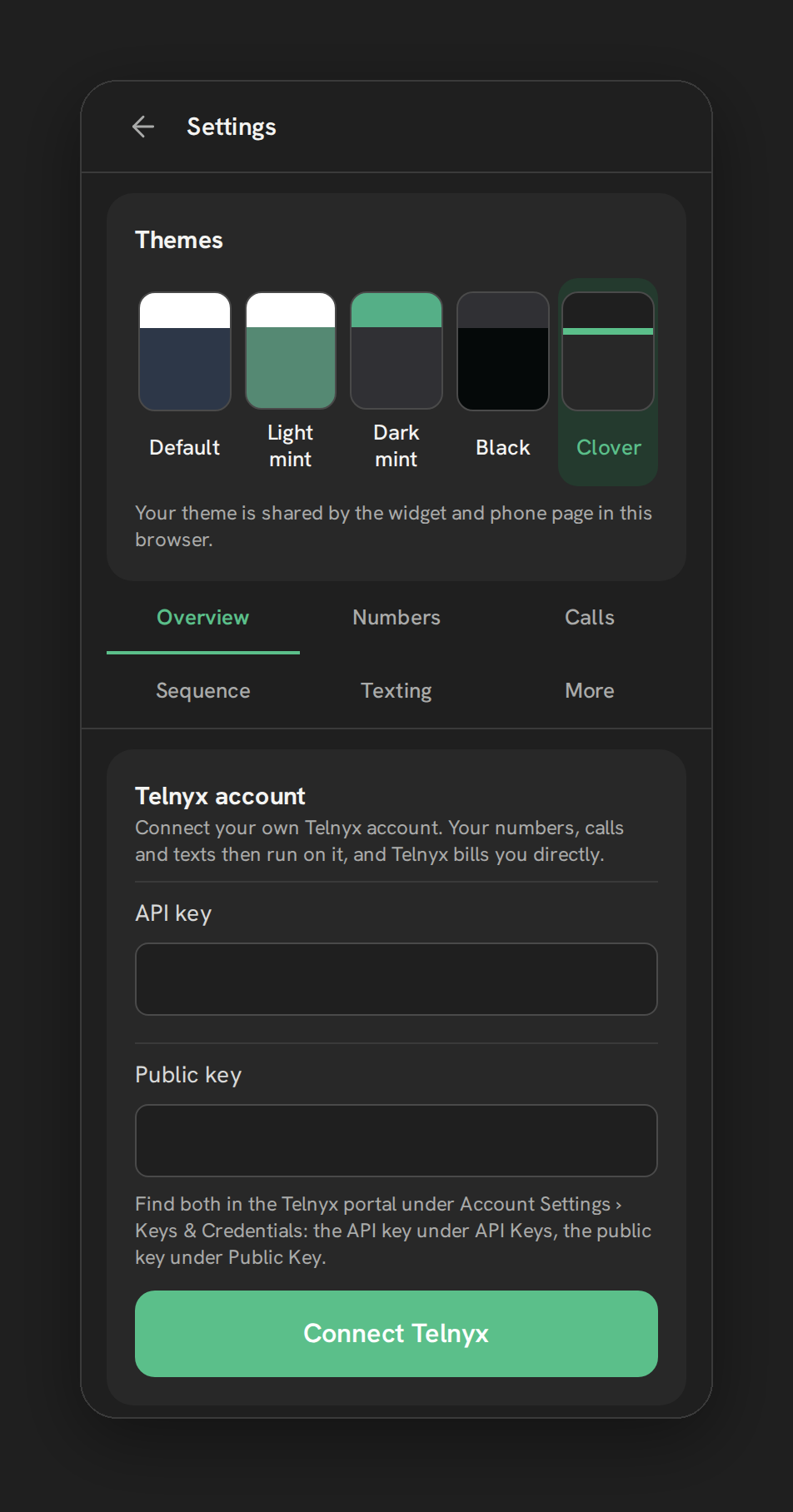
The Telnyx account card in Settings, Overview: API key and Public key fields and a Connect Telnyx button.
Settings, Overview: the Telnyx account card.
04NumbersStep 4 of 6

Add or bring your numbers

Use numbers already in your Telnyx account, buy new ones, or add texting to a number you own elsewhere with Hosted SMS.

You do

  • Add numbers on the Numbers tab, or buy new ones
  • Start Hosted SMS for a landline or VoIP number: letter of authorization, a recent bill, a code by text

We do

  • Check that each number routes calls and texts where you expect
  • Handle porting and short-code requests with you by email
First number setup
Screen
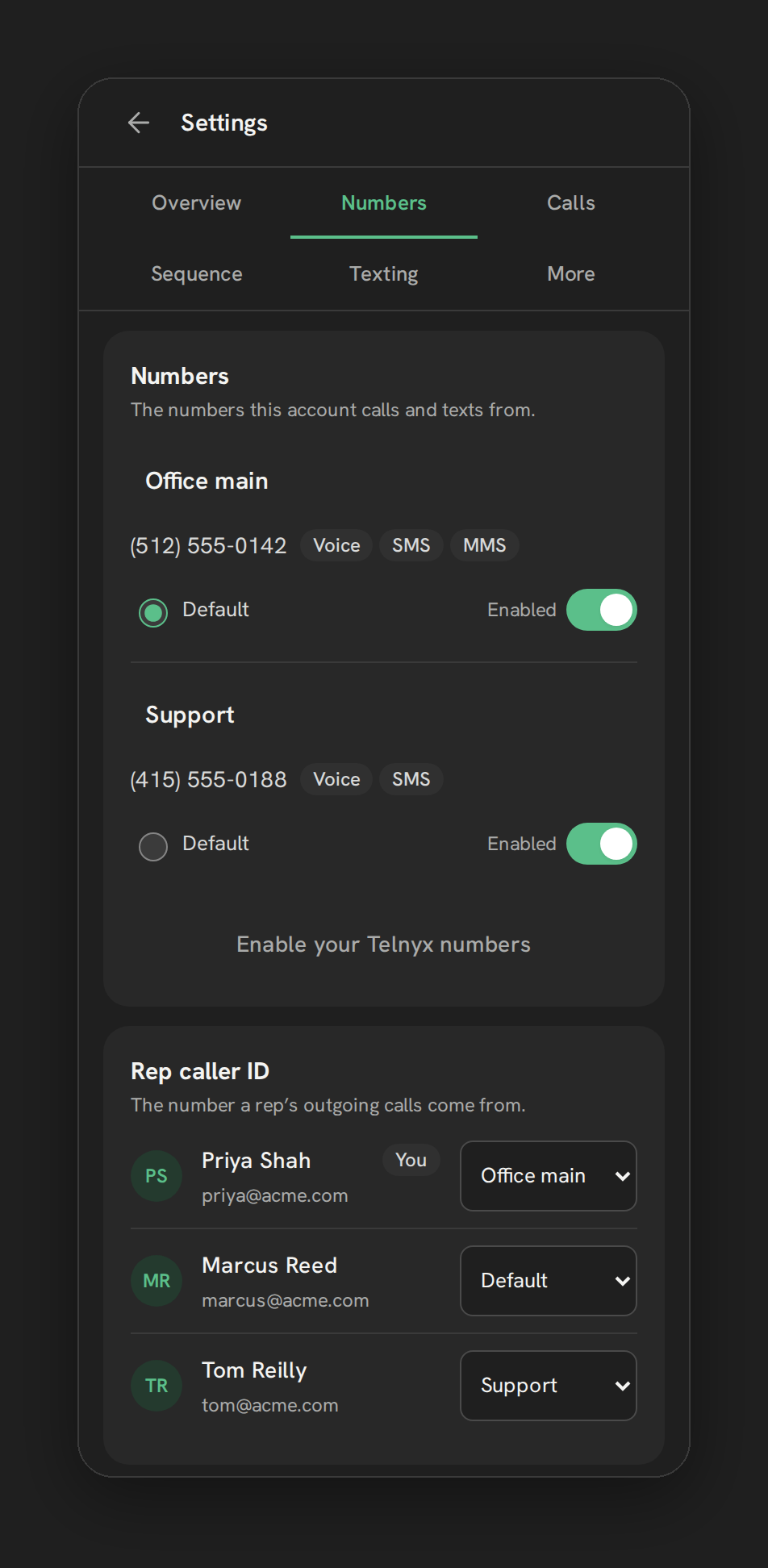
The Numbers tab: Office main and Support numbers with Voice, SMS and MMS chips, and Rep caller ID per rep.
Settings, Numbers: your numbers and each rep's caller ID.
05RoutingStep 5 of 6

Set routing and add reps

Decide how incoming calls ring, when the business is open, and what happens when nobody answers.

You do

  • Pick everyone at once or round robin, and set business hours
  • Add a forwarding number, and voicemail if you want it

We do

  • Place a test call with you and check it lands on the contact's timeline
  • Turn on AI Notes for the sub-account if your plan includes it
Routing guide
Screen
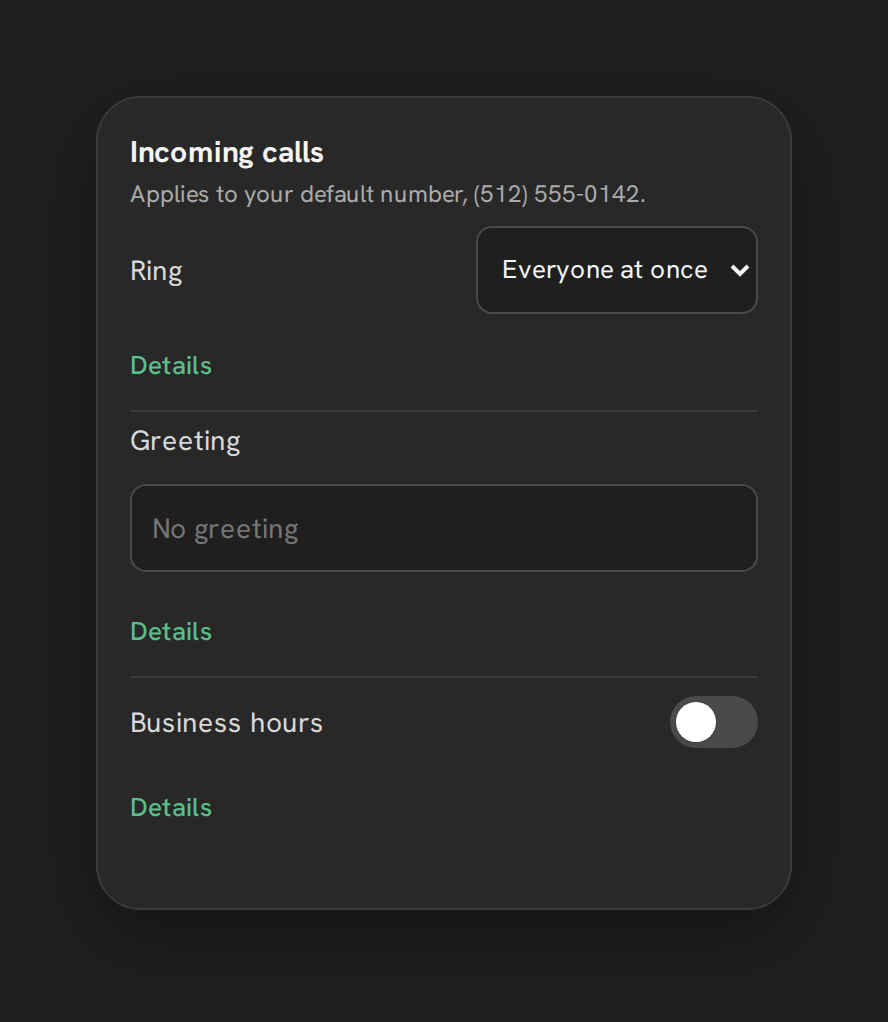
Incoming calls settings: Ring set to Everyone at once, a greeting field and a Business hours switch.
Settings, Calls: how incoming calls ring.
06Go liveStep 6 of 6

Register for 10DLC and go live

Business texting to US numbers needs A2P 10DLC registration. You submit it in Phone Clover; the carriers review it.

You do

  • Fill in Business and Use case on the Texting tab and submit
  • Fix and resubmit if the carriers ask for changes

We do

  • Explain what the carriers look for in each field
  • Send a test text with you once your numbers are registered
10DLC guide
Screen
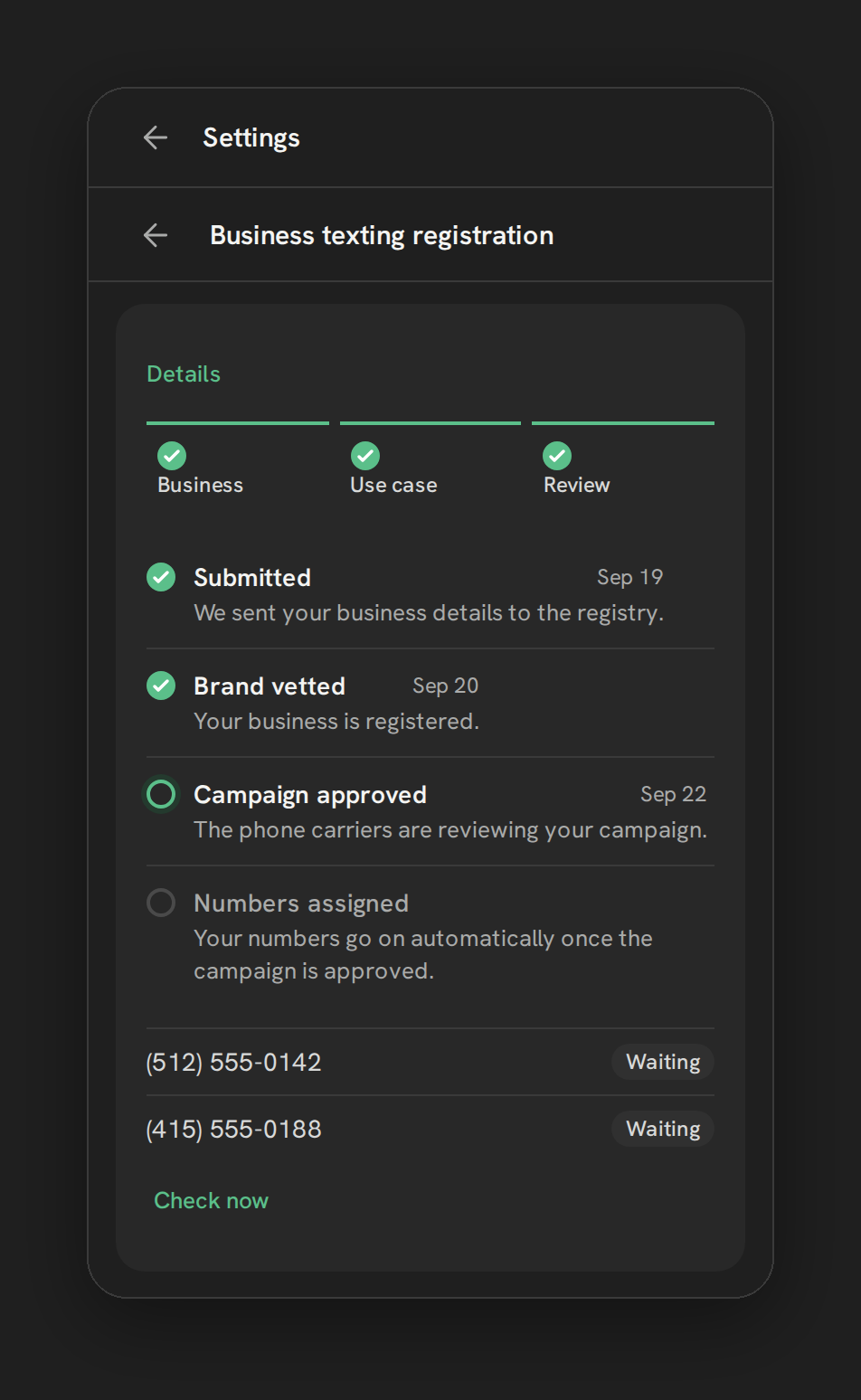
Business texting registration: Submitted, Brand vetted, Campaign approved, and numbers waiting to be assigned.
Settings, Texting: registration status step by step.

What Phone Clover handles with you

Early access means there is no self-serve sign-up yet. It also means a person on our side knows your setup.

The install link

We send it, and confirm the install arrived in the right agency or sub-account.

Switching features on

Browser calling and AI Notes are switched on per sub-account by us, so we turn them on as part of setup.

A test call and a test text

We check both with you before your reps start, so the first real call is not the test.

Requests the app does not cover

Porting, short codes and alphanumeric sender IDs are not self-serve. We handle them with you by email.

Questions after go-live

Email support@phoneclover.com. The docs cover every screen in the app.

What we never need

Your Telnyx API key goes into the settings card only. We never ask you to send it by email or chat.

Coming from LC Phone: what changes, and what does not

What changes

  • Calls your reps make and take in Phone Clover run on your Telnyx account, and Telnyx bills you for them directly.
  • Reps call from the Phone Clover phone on each HighLevel page and the Phone page, in a desktop browser.
  • Numbers you add to Phone Clover send texts and receive calls through it, inside your Telnyx account.
  • You get failed-text reasons, number health and the spam firewall for those numbers.

What does not change

  • Your contacts, pipelines, tags and workflows stay in HighLevel, as they are.
  • Calls on your existing LC Phone numbers keep working. You do not have to port them.
  • Calls land on the contact's timeline in HighLevel, with outcomes, tags and tasks.
  • Texting from Conversations and workflows stays on LC Phone until the native SMS provider is switched on.

Setup questions

Can I set it up myself?

Not yet. Phone Clover is a private HighLevel app in early access, so we send the install link and set up each new account with you. The docs cover every step if you want to read ahead.

How long does setup take?

It depends mostly on reviews we do not control. Telnyx reviews Hosted SMS on business days, usually in 1 to 3, and the carriers review 10DLC registration on their own timeline. Calling can be tested before texting registration is done.

Can we start with one sub-account?

Yes. Each sub-account connects its own Telnyx account, numbers, routing and reps, so you can roll it out one sub-account at a time.

Do I have to port my numbers?

No. Use numbers already in your Telnyx account, buy new ones, or add texting to a landline or VoIP number with Hosted SMS. Porting requests go to us by email; it is not self-serve yet.

Ready when you are.

Tell us about your team and your sub-accounts. We reply by email and go through setup with you.

Request early access