
GoHighLevel Incoming Call Popup: Show the Contact Before You Answer
gohighlevel incoming call popup 5 min read
What HighLevel shows when a call comes in, what reps still lack, and how Phone Clover's caller card adds name, tags, DND status and the latest note.
- Best for
- HighLevel teams that answer inbound calls in the browser and want the contact's name, tags, DND status and latest note on screen while the phone rings.
- Not for
- Reps who take calls on a mobile app, or teams that need the open deal and pipeline stage on the card today. Phone Clover calls run on the desktop browser only, and the deal line is not shown yet.
- The difference
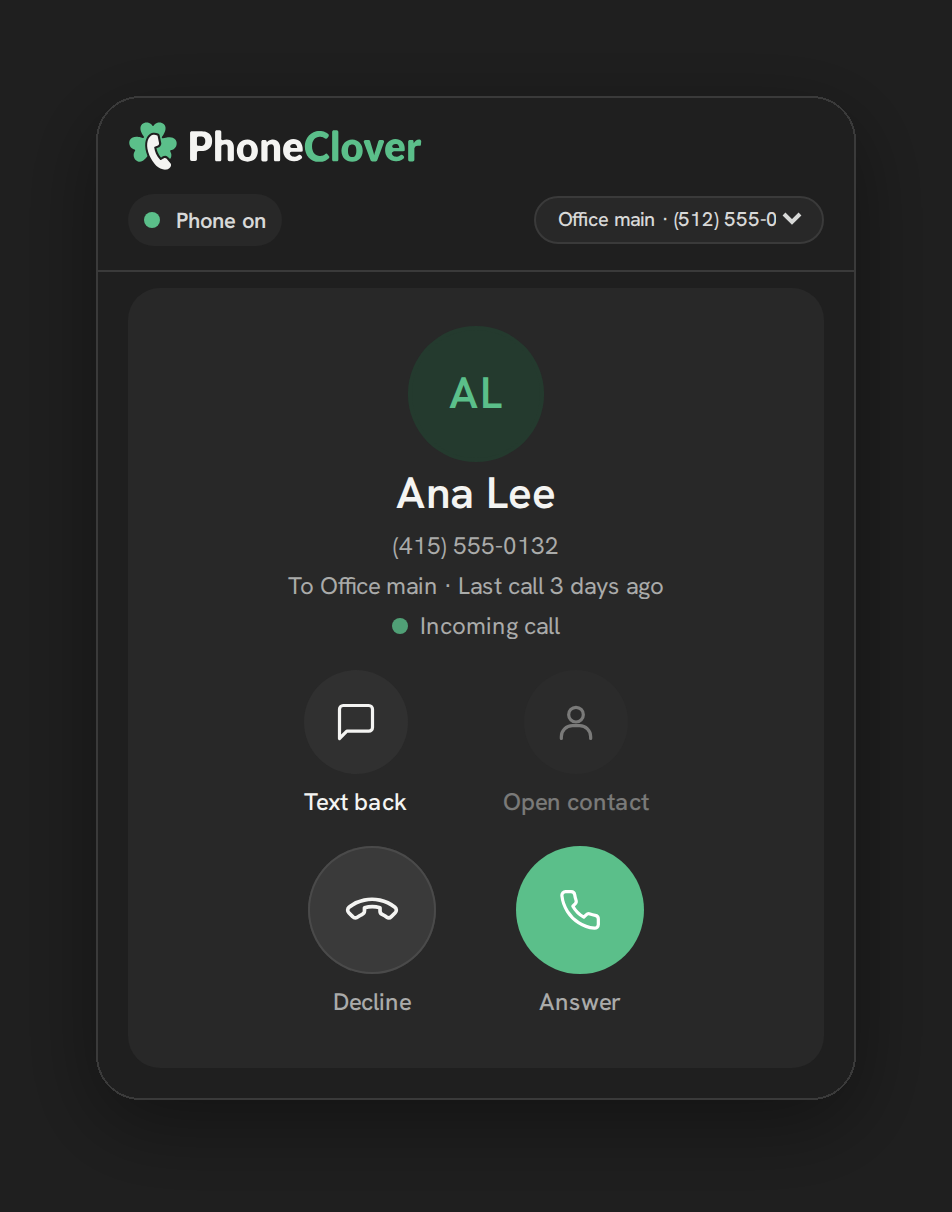
- Phone Clover's caller card matches the caller to an existing HighLevel contact without ever creating one, then shows name, up to 5 tags, DND status and the newest human-written note.
When a call comes in to HighLevel, the first question a rep has is simple: who is this, and why are they calling? The phone rings, the rep has a few seconds, and the answer is usually in a contact record that is not on screen.
HighLevel does show something on an incoming call. On the web app, it can show the caller’s name. But we could not find a HighLevel help article that lists what the incoming call popup contains, and users keep asking for more on HighLevel’s ideas board. That gap is what this guide is about, and what Phone Clover’s caller card fills for browser calls.
What HighLevel shows on an incoming call
Here is what we could confirm from HighLevel’s own pages.
- Caller name on the web app. HighLevel’s changelog says: “We will now show the caller name on the web app when the call is forwarded from IVR/Workflow. Earlier, we used to show ‘IVR’ and not the caller name.” That is a real improvement, and it is about the name.
- A request for more. On the ideas board, a request titled “Add Info to Incoming Call Pop-Up” asks for more fields in the web app popup. Its examples include whether a caller already has an appointment or is tagged as a VIP, and the author says it would help on the mobile app too.
- Business name on mobile. Another ideas-board request asks the mobile app to show the corresponding business name on incoming calls.
We did not find HighLevel documentation that says the native popup shows tags, notes or do-not-disturb status. If you see otherwise in your account, trust your account. We can only report what the help center and ideas board say.
What reps actually need on screen
A rep picking up a ringing call needs a short list of facts. Here is how that list compares.
| What the rep needs | HighLevel native | Phone Clover caller card |
|---|---|---|
| Who is calling (name) | Name on the web app when forwarded from an IVR or workflow, per the changelog | Name, from HighLevel’s own duplicate-contact matching |
| Why they might be calling (latest note) | Not documented | Newest human-written note, up to 160 characters |
| What kind of contact this is (tags) | Not documented | Up to 5 tags |
| Can you call or text them (DND) | Not documented | Do-not-disturb status |
| Deal context (open opportunity and stage) | Not documented | Built, but not shown yet |
“Not documented” means we found no HighLevel page saying so, not that it is impossible. The last row matters: Phone Clover’s deal line exists in the product, but it stays hidden until a permission is granted. Do not read it as a feature you can use today.
How the caller card works
The caller card is a card that appears while an inbound call rings. Here is the sequence.
- The call rings. Telnyx delivers the call and the caller’s number to the phone in your browser.
- Phone Clover looks up the number. It uses HighLevel’s own duplicate-contact matching, the same logic HighLevel uses to avoid duplicates. It never creates a new contact, even when nothing matches.
- The card appears. If there is a match, it shows the contact’s name, up to 5 tags, do-not-disturb status and the newest human-written note. Notes that the system writes by itself, such as “Called at:” entries, are skipped. HTML is stripped, and the note is cut at 160 characters.
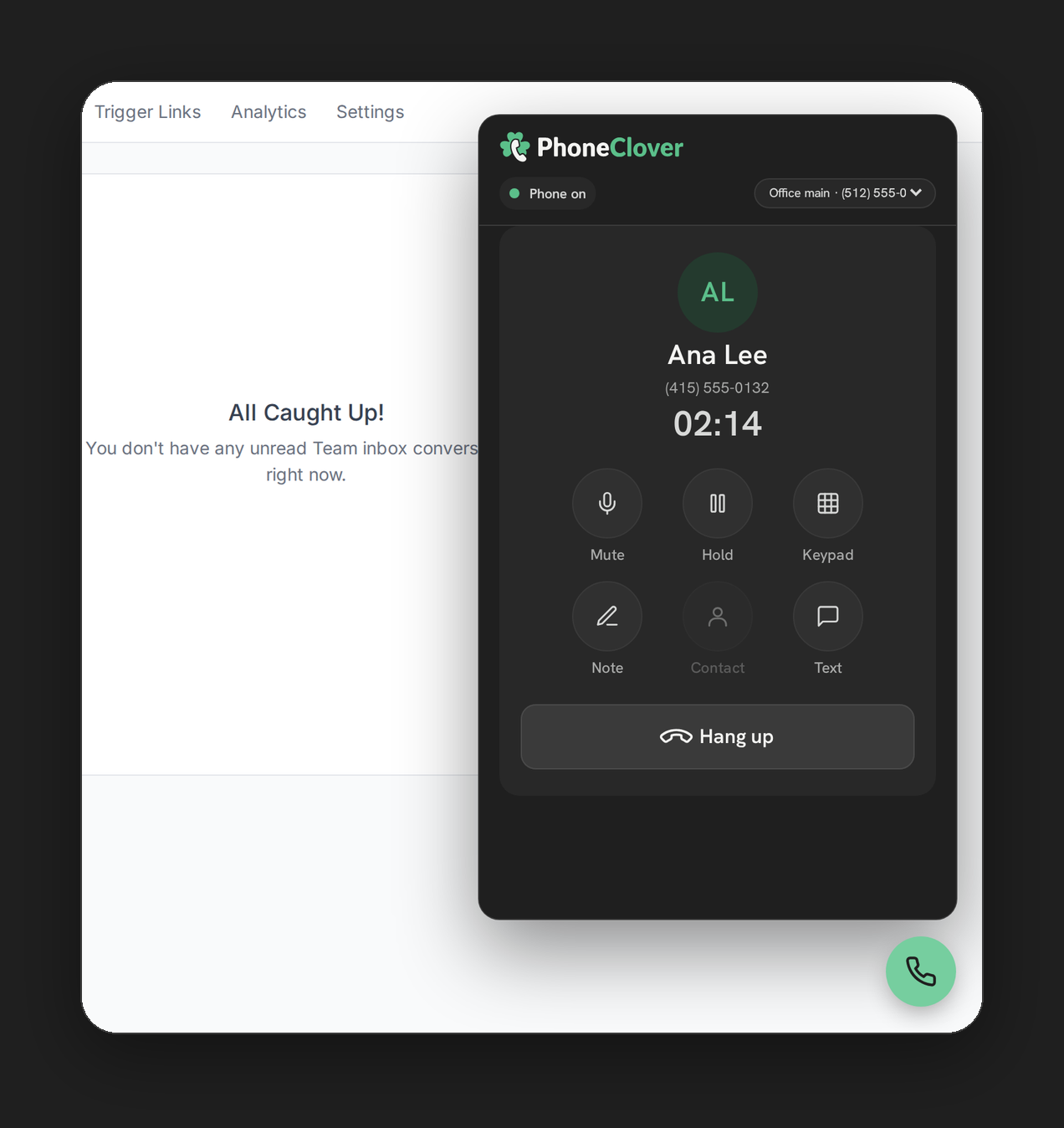
- It stays during the call. The same card is available once you answer, on both the floating widget and the full Phone page. You do not lose it the moment you pick up.
- Lookups are cached. Results are kept for 60 seconds per phone number in the phone, so a repeat caller within a minute does not trigger a fresh lookup.
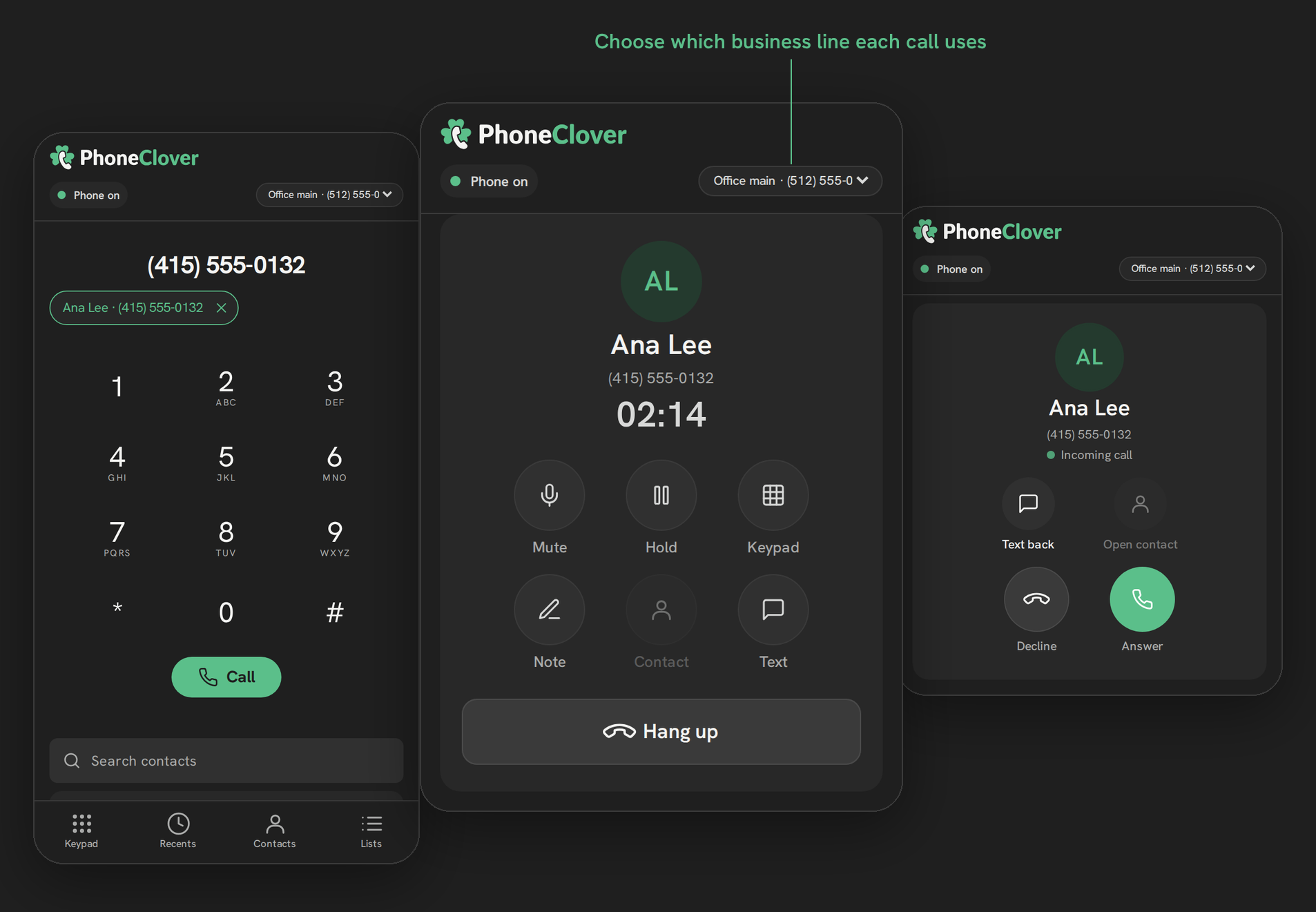
The other call tools sit on the same screen: mute, hold, keypad, note, contact, text and hang up. For answered inbound calls there is also a Transfer control, in early access, which does a blind transfer only. See in-call controls and call transfer.
Note: The caller card only shows what HighLevel already knows. A number with no matching contact has no name to show, and a contact with no tags or notes gives a sparse card. That is expected.
Limits
We would rather you hear these from us.
- No deal line yet. The first open opportunity with its pipeline and stage is built, but it is only shown once the
opportunities.readonlypermission is granted. Today it stays hidden. Do not plan around seeing deal stage on the card. - Desktop browser only. Calling runs in the browser on a computer. There is no mobile app calling, so the mobile requests on the ideas board are not something we answer.
- Early access. Phone Clover is a private HighLevel app in early access. Browser calling runs in our pilot account today, so everything here is early access.
- Notes are trimmed. You see the newest human-written note, capped at 160 characters.
- Five tags. The card shows up to 5 tags, even if the contact has more.
- Up to 60 seconds old. Because of the cache, a change made seconds before a call may not show on that ring.
- Context, not an editor. To fix a tag or a note, you open the contact in HighLevel.
Set-up notes
You do not turn the caller card on separately. It is part of the browser phone, so once the phone is running for your sub-account, inbound calls get the card.
- Start with the browser softphone overview to see how the phone connects to your Telnyx account, and the browser softphone page for what it does.
- The caller card docs cover each field on the card.
- If you are weighing a phone in the browser against calling from a mobile app, read browser softphone vs mobile calling in GoHighLevel.
A quick habit that helps: keep tags short and put a clear line at the top of your latest note, since the card shows the first 160 characters of the newest human-written one. Notes that read like “Wants a quote for the second unit, call back after 3pm” earn their spot on the card.
Where this leaves you
HighLevel’s web app shows the caller’s name in the cases its changelog describes, and users are asking for more. If you work inbound calls in a browser and want the name, tags, do-not-disturb status and latest note in front of you before you answer, the caller card does that. If you need the deal stage on the card, it is not shown yet. If you take calls on a mobile app, it is not for you.
See the caller card docs, the in-call controls, and everything Phone Clover does on the phone side under Calling.