
How to Log Call Outcomes in HighLevel
HighLevel call outcomes 7 min read
How HighLevel call outcomes work in Phone Clover - the four built-in tiles, custom outcomes with tags and tasks, and where they show up on the contact timeline.
- Best for
- Teams that want a quick, repeatable way to record what happened on a call and trigger the right tag or task, especially inside calling lists.
- Not for
- A workflow that expects an outcome to do more than apply a tag and a task, like opening a booking link or branching a multi-step sequence.
- The difference
- Up to 8 custom outcomes per sub-account, each with an optional tag and follow-up task, on top of the 4 standard outcome tiles.
A call that ends without a record of what happened is a call your CRM cannot act on. HighLevel call outcomes in Phone Clover turn the end of every call into a quick, structured note: what happened, whether it needs a tag, and whether it needs a follow-up task, all written straight back to the contact. This guide covers the built-in outcomes, how custom outcomes work, and where all of it shows up afterward.
Why outcomes matter
Without a consistent outcome step, “what happened on that call” lives only in a rep’s memory or a freeform note, if it gets written down at all. A structured outcome does three things a freeform note cannot do reliably on its own:
- It gives every call a consistent label a manager can filter and count later.
- It can tag the contact automatically, so a segment like “left voicemail x3” or “not interested” can drive a workflow.
- It can create a follow-up task with a due date, so the next action does not depend on the rep remembering to set a reminder.
Standard outcomes
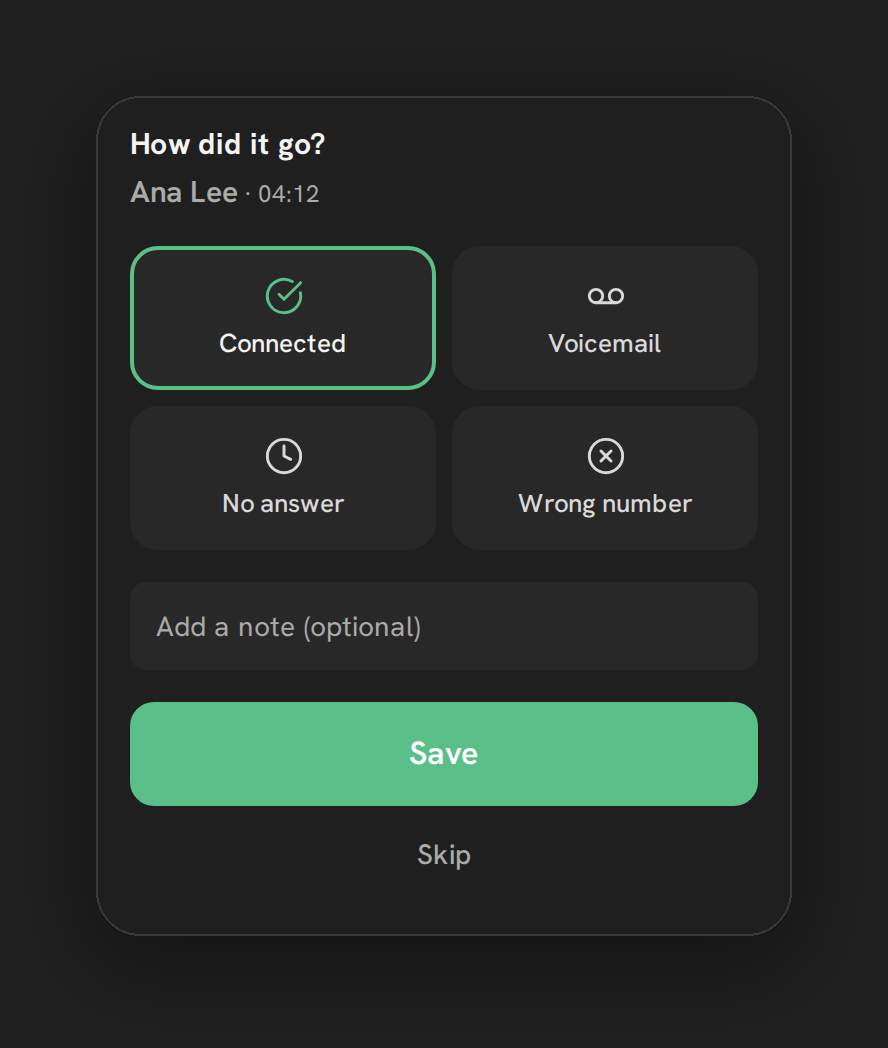
Every call in Phone Clover ends with a card titled “How did it go?” showing four built-in tiles:
- Connected
- Voicemail
- No answer
- Wrong number
Alongside the tiles is an optional note field (200-character max) and Save and Skip buttons. If the call was not part of a running calling list, the card auto-dismisses after 20 seconds if you do not act on it, so it never blocks you from moving on. Inside a running calling list, logging an outcome is required before the list advances to the next contact, since the whole point of a list is a clean record of every attempt.
Custom outcomes
The four built-in tiles cover the basics, but most teams want outcomes specific to how they actually work leads: “Booked appointment,” “Not interested,” “Callback requested,” and so on. An admin creates these from Settings, under the Calls tab, in the “Call outcomes” card:
- Up to 8 custom outcomes per sub-account.
- Each has a name (max 40 characters).
- An optional tag (max 40 characters) applied to the contact when that outcome is picked.
- An optional follow-up task, due today, 1 day, 2 days, 3 days, 1 week, 2 weeks, or 30 days out (0 to 90 days is supported generally). The task gets created in GHL and assigned to the rep who picked the outcome.
Custom outcomes appear after the four built-in tiles on the same card, so picking one is still a single click at the end of a call.
Warning: Logging an outcome twice on the same call creates a second follow-up task if that outcome has one attached. Log it once. Also, if an admin later deletes a custom outcome, its label stays visible on calls that already used it; deleting it does not rewrite history.
Tags and follow-up tasks
The tag and task behavior is what turns an outcome from a label into something the rest of GHL can act on. A tag applied by an outcome can feed a workflow, a saved filter, or a report. A follow-up task lands directly on the rep’s task list in GHL with the due date chosen when the outcome fired, so “call back in 2 days” does not depend on a rep writing it down somewhere else.
One thing outcomes do not do yet: there is no built-in action to open a booking link when an outcome is picked. If your process includes sending a booking link after a specific outcome, that still needs a separate step or workflow trigger on the tag.
Setting up custom outcomes
To build your own outcomes beyond the four built-in tiles:
- Open Settings > Calls > Call outcomes.
- Click to add a new outcome, up to 8 total.
- Enter a name, up to 40 characters, something short and specific like “Booked appointment” or “Requested callback.”
- Optionally, add a tag (max 40 characters) to apply to the contact when this outcome is picked.
- Optionally, choose a follow-up task due date, from No task up to 30 days out (the server supports 0 to 90 days generally, though the picker offers common presets).
- Save. The new outcome now appears on every post-call card at this sub-account, after the four built-in tiles.
A few practical patterns worth considering when designing your outcome set:
- Keep names short and unambiguous. A rep should be able to tell the difference between two outcomes at a glance during a busy day of calls.
- Reserve tags for outcomes that should drive something downstream, like a workflow or a segment, rather than tagging every single outcome for the sake of it.
- Attach a follow-up task to any outcome that needs a next action. “Callback requested” without a task attached relies on a rep remembering; with a task attached, it lands on their list automatically.
- You have 8 slots. Spend them on outcomes reps will actually use every day, not edge cases that come up once a quarter. A cluttered outcome card slows reps down at exactly the moment they want to move fast.
Reading outcomes back later
Once outcomes are being logged consistently, a few places let you look at them after the fact:
- The contact timeline shows the “Outcome:
<label>” note on every call, in context with everything else that happened with that contact. - The dashboard’s expanded call row shows the outcome alongside the recording player and any AI summary, for a manager reviewing a specific call.
- CSV exports include an Outcome column, so you can filter or pivot on outcome type outside of Phone Clover if you need a deeper analysis than the dashboard offers directly.
Timeline visibility
Every outcome writes a note to the contact in GHL, formatted as “Outcome: <label>,” so anyone
looking at the contact’s timeline afterward, not just the rep who took the call, can see what
happened without opening the recording. Combined with the in-call note
a rep can add during the call itself, and any recording or AI summary attached to the call, the
contact record ends up with a full picture of the conversation without extra manual data entry.
That same outcome label also feeds the dashboard: it is what fills the Outcome column in a CSV export, and what a manager sees in the expanded row of the call log. Logging outcomes consistently is what makes the reporting side of Phone Clover actually useful, not just the calling side.
Outcomes inside a calling list
Outcomes work a little differently when a rep is working through a calling list built from a tag or from selected contacts. Inside a list:
- Logging an outcome is mandatory before the dialer moves to the next contact, rather than optional with a 20-second auto-dismiss.
- The dial-list status bar reflects outcomes as the list runs, with wording like “Calling
<pos>of<total>” during a call and a running count once it finishes. - At the end of the list, a summary reads something like “Done: N connected, N voicemail, N no answer, N wrong number, N skipped,” with a “Call N again” button to retry the no-answers as a fresh mini-list.
This is where consistent outcome logging pays off the most, since a manager reviewing a completed list gets an accurate picture of exactly how many contacts were reached versus left as voicemail or no answer, without having to reconstruct it from the call log manually.
Common mistakes to avoid
A few patterns worth watching for as a team adopts outcomes:
- Skipping outcomes outside of lists. Since the card outside a list is skippable and auto-dismisses, it is easy for a busy rep to let it pass without logging anything. If your reporting depends on outcomes, make logging them a stated expectation, not just an available option.
- Overloading a single outcome with mixed meanings. An outcome like “Follow up” used for everything from “call back in an hour” to “check in next quarter” defeats the purpose of a follow-up task with a specific due date. Pick a due date that matches the actual next step needed.
- Forgetting to update the outcome list as your process changes. If your team’s use of an outcome tag has changed since it was created, and the outcome itself is not being used, it may be worth replacing it rather than letting one of your 8 slots go stale.
- Assuming a deleted outcome’s history disappears. It does not. If you delete a custom outcome that turned out to be a mistake, old calls will keep showing its original label; plan renames and replacements with that in mind.
When Phone Clover fits, and when it does not
Logging call outcomes in Phone Clover fits a team that wants a quick, repeatable way to record what happened on a call and trigger the right tag or task without extra manual steps, especially teams running calling lists where an outcome is required before the next call starts.
It does not fit a workflow that expects an outcome to trigger something more complex than a tag and a task, like opening a booking link automatically or branching a multi-step follow-up sequence. For that, you still need a GHL workflow built on top of the tag an outcome applies.
Related reading: Post-call outcomes, Custom outcomes, tags, and tasks, Call a tag from the dashboard, and the post-call outcomes product page.