
Export the call log to CSV
Download the currently filtered call log as a spreadsheet, capped at 1000 rows.
For everyone · Updated Sep 23, 2026
All guides
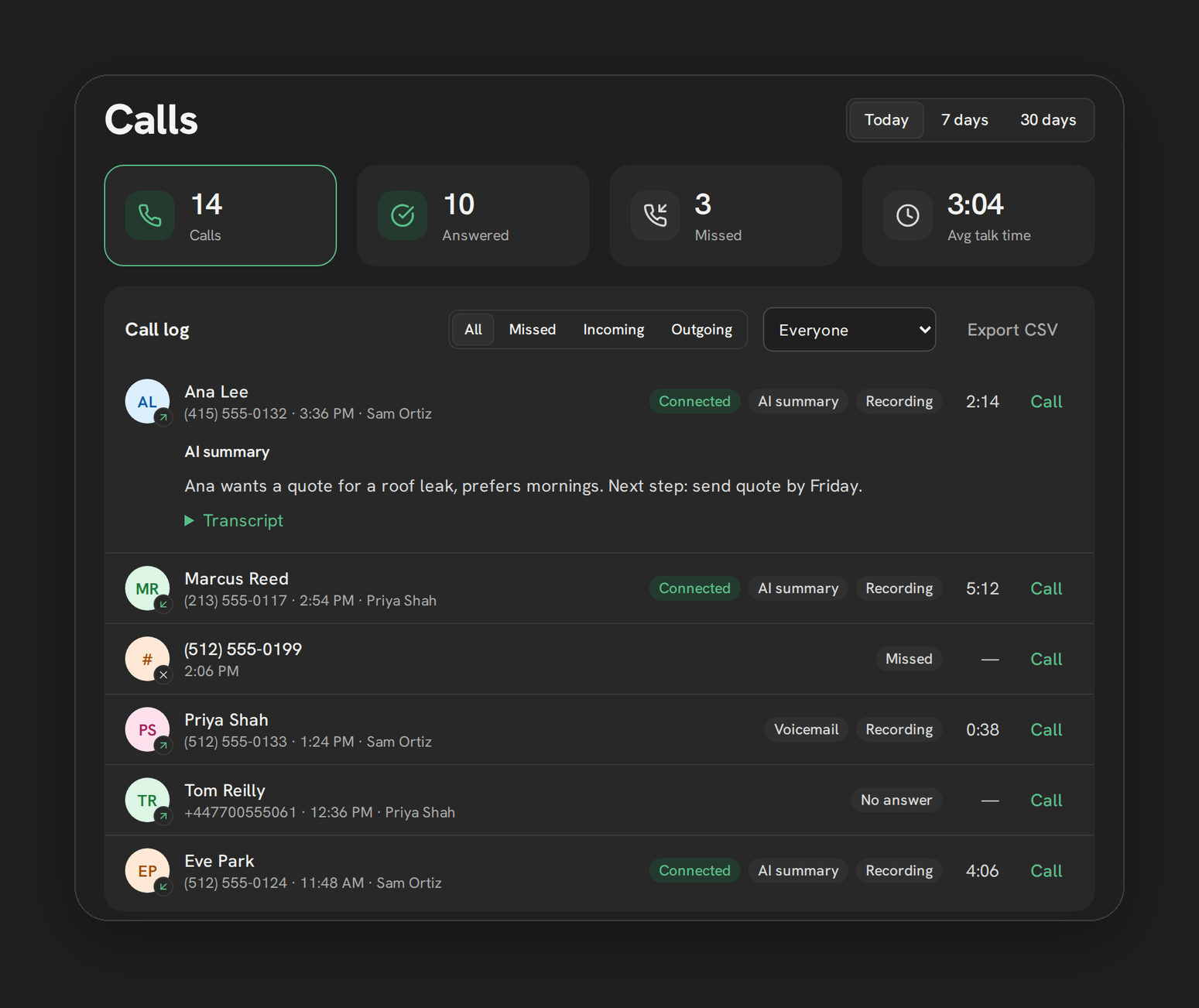
If you need call data in a spreadsheet, for payroll, a report to a client, or just to sort and pivot outside Phone Clover, the dashboard can export the call log directly to CSV.
Where the button is
Above the call log on the dashboard, an Export CSV button downloads whatever is currently showing in the log. It is disabled whenever there are no rows to export.
What “currently showing” means
The export respects whatever filters and period are active when you click it. If you have the period set to 7 days and the filter set to Missed, the CSV contains only missed calls from the last 7 days, not the full call history. Set your filters first, then export. See Call log filters for the filter options.
What is in the file
| Column | Contents |
|---|---|
| Date | Call date |
| Time | Call time |
| Direction | Incoming or outgoing |
| Number | The phone number on the call |
| Contact | The matched HighLevel contact, if any |
| Rep | Which rep handled the call |
| Outcome | The recorded post-call outcome |
| Talk seconds | Duration of the connected portion |
| Recording | Whether a recording exists |
| AI summary | The AI summary text, if the add-on ran on that call |
How it is built
The file is built client-side, in your browser, with a UTF-8 byte-order mark included so it opens
correctly in Excel. Any field starting with =, +, -, or @ has a leading apostrophe added
automatically, which stops spreadsheet software from treating it as a formula. This is a security
measure, not a formatting choice, so do not remove it if you are editing the file afterward.
Limits
Note: The export is capped at 1000 rows. If your filtered call log has more than 1000 calls, only the first 1000 are included in the download.
- 1000-row cap per export.
- Lookback is limited to the dashboard’s own 90-day server-side maximum, regardless of filters.
- There is no scheduled or automatic export. Every export is a manual click.
Getting more than 1000 rows
If you need more history than a single export can hold, narrow the filters to reduce the row count (for example, export by direction, or by a shorter period) and run separate exports, then combine them in your spreadsheet tool.
Troubleshooting
The Export CSV button is greyed out. There are no rows matching the current filter and period. Widen the period or change the filter to All.
The file opens with garbled characters in Excel. This should not happen since the export includes a UTF-8 byte-order mark, but if it does, re-import the file explicitly as UTF-8 rather than letting Excel guess the encoding.
A cell shows a leading apostrophe I did not expect. That is the formula-injection protection
working as intended on a field that started with =, +, -, or @. It is safe to leave as is.