
How to Use Telnyx Numbers in GoHighLevel
use Telnyx numbers in GoHighLevel 8 min read
Which Telnyx numbers work in GoHighLevel and how to get them in: numbers you own, new local and international numbers, Hosted SMS, porting, caller ID and health.
- Best for
- Admins who already run, or plan to run, a HighLevel sub-account on their own Telnyx account and want to know how each kind of number gets in and stays healthy.
- Not for
- Anyone who needs 911 on the number, a self-serve port inside the app, or texting a mobile number held elsewhere; none of those work through Phone Clover today.
- The difference
- Every number stays in your own Telnyx account. Phone Clover adds, buys, labels and watches them from inside HighLevel, and Telnyx bills you for them directly.
This guide is only about numbers: which ones can work with HighLevel through Phone Clover, how each kind gets into a sub-account, and what to set up once it is there. It assumes your Telnyx account is already connected. New to Telnyx in HighLevel? Start with Telnyx for GoHighLevel, which covers your options, what works today and what it costs.
Which numbers can work
Phone Clover runs on your own Telnyx account, so the rule is simple: Phone Clover can use a number if it lives in that Telnyx account. There are three ways to get one there, plus Hosted SMS, which adds texting to a number that stays somewhere else.
Note: what works today. Adding, buying and text-enabling numbers, 10DLC registration and number health are ready for every early-access account. Browser calling is in early access: it runs in our pilot account today and is switched on for each new account as we set it up. Texting from HighLevel’s Conversations, workflows, bulk texts and the mobile app through Telnyx is coming next, not live yet.
| Your number today | What you do | What moves |
|---|---|---|
| Already in your Telnyx account | Add it on the Numbers tab | Its texting and incoming calls, inside your Telnyx account |
| You don’t have one yet | Buy it with Get a number | Nothing; it is new |
| A US landline or VoIP number with another provider | Text-enable it with Hosted SMS | Texting only; calls stay where they are |
| A number you want to move to Telnyx for good | Port it into Telnyx, then add it | The whole number |
A few things are not self-serve today: short codes, alphanumeric sender IDs and porting. The Get a number screen offers an email link to request those. Mobile numbers held with another carrier can’t be text-enabled with Hosted SMS.
If a sub-account uses LC Phone numbers today, they keep working. Installing Phone Clover does not touch calls on them, and nothing here asks you to move them.
Add numbers already in your Telnyx account
This is the fastest path. In Phone Clover, open Settings, then the Numbers tab, and click
Enable your Telnyx numbers. Every number in the connected Telnyx account that isn’t in use in
Phone Clover yet appears in the picker. Pick one and Phone Clover asks you to confirm: “Move
<number> to this account? Voice and texting for it will route here.” Click Move number.
The number then shows in the Numbers card with an editable label, the full number, capability chips for Voice, SMS and MMS, a Default radio and an Enabled switch. Nothing is bought again; the number stays in your Telnyx account.
Warning: adding a number moves it onto the Phone Clover messaging profile and routes its incoming calls to Phone Clover. If a desk phone setup or another app uses that number today, its texts and calls stop going there. Add only numbers you want Phone Clover to handle.
Moved the wrong one? Use its Enabled switch to stop using it for new calls and texts. Nothing is deleted from Telnyx. The step-by-step version is in Set up your first number.
Buy new local and international numbers
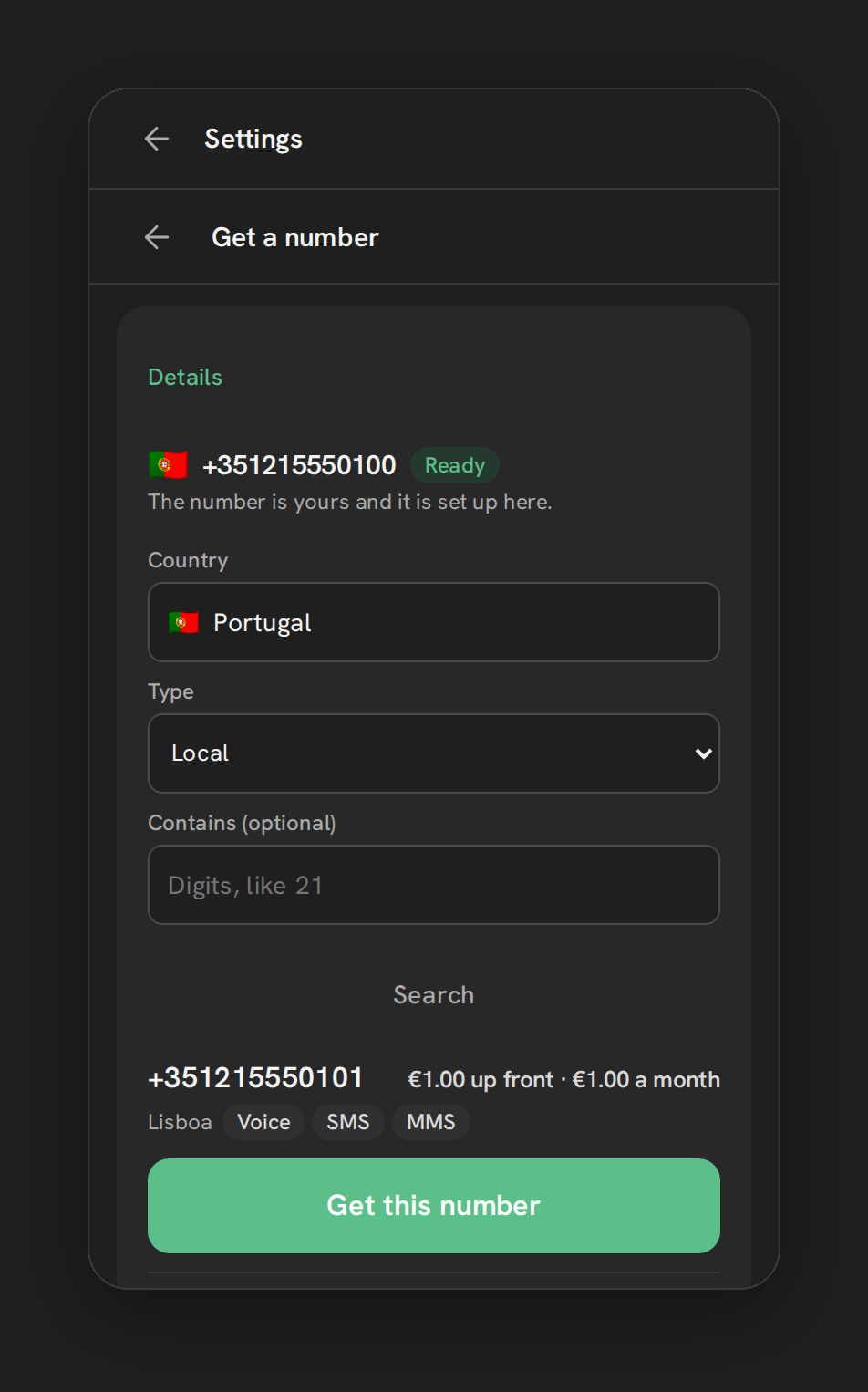
For a new number, go to Settings, Numbers, Add a number, then Get a number. Pick a Country and a Type (Local, Mobile, Toll-free, National or Shared cost), and optionally the digits the number should contain. Each result shows its price, such as “$1.00 up front · $1.00 a month”, and chips for what it supports: Voice, SMS, MMS, Fax and 911.
Before you pay, Phone Clover asks you to confirm: “Buy <number>? Telnyx charges <total> to your
account.” The charge goes to your Telnyx balance, not to us. Things to know:
- Paperwork first in some countries. Some countries need documents, an address or extra fields before the purchase goes through. The screen asks for exactly what that country needs.
- Up to 5 purchases per day, per sub-account. It is a guard against runaway spending, not a plan limit.
- Chips vary by country and type. Check that the number supports what you need, especially SMS, before you buy.
- A 911 chip is not 911 service. Phone Clover does not provide 911 or E911 on any number, even when the number itself supports it. Keep another line for emergencies.
Texting rules differ by country, too. US 10DLC registration covers US numbers only, so check what a country requires before you text from its numbers at volume. See Buy an international number and the number management page.
Text-enable a number held elsewhere
If customers know a US landline or VoIP number that lives with another provider, you don’t have to move it to text from it. Hosted SMS adds texting to that number and leaves its calls exactly where they are. You start it from Add a number, then Text-enable a number you already own, and the wizard walks through four steps: check the number, upload a letter of authorization and a recent bill, verify with a code texted to the number, then Telnyx review.
Two limits matter: it is US only, and mobile numbers don’t qualify. Because the calls stay with your current provider, a hosted number texts through Phone Clover but does not ring in the browser phone.
The full walkthrough, documents and common reasons a request is rejected are in How to text-enable an existing business number without porting and the Hosted SMS guide.
Port a number into Telnyx
Porting moves a number’s calls and texts to a new carrier for good. Choose it when you want the number’s calls on Telnyx too, for example ringing in the browser phone once calling is switched on for your account, and you are ready to leave the old provider.
Porting is not a self-serve step in Phone Clover. It happens on the Telnyx side, between your Telnyx account and the carrier that holds the number today; the Get a number screen offers an email link to request help. Once the port completes, you add the number with Enable your Telnyx numbers like any other.
A port changes who routes the number, so plan it for a quiet period. If texting is all you need on that number, Hosted SMS gets you there without touching the calls.
Pick a default line and per-rep lines
Once you have more than one number, two settings decide which number does what.
The default number. Choose it with the Default radio in the Numbers card. It is your main business line: the incoming call settings (ring everyone at once or round robin, business hours, the greeting) apply to the default number only. Set a default as soon as your first number is in.
Rep caller ID. Below the Numbers card, the Rep caller ID card has a select per rep for the number their outgoing calls show. Left on Default, a rep’s calls use the default number. Give a rep their own line when customers should see and call back one person’s number, such as an account manager with a book of clients.
Both settings shape calls, and browser calling is in early access, so they take effect as calling is switched on for your account. For how calls reach reps once these are set, see Calling and Round robin routing.
Caller ID name (CNAM) and STIR/SHAKEN
CNAM is the caller ID name some carriers show next to your number, and it belongs to the number in your Telnyx account. STIR/SHAKEN is the call-signing standard carriers use to check that a call really comes from the number it shows. Phone Clover shows both for each number on the Number health card (Settings, Texting tab), so you can spot a missing or wrong name, or unsigned calls, before reps call from that number.
Keep expectations narrow. A correct name and active signing help your name show up on the carriers that matter, for US-to-US calls to T-Mobile and Verizon mobile numbers. They do not remove “Spam Likely” labels broadly, and no tool can promise that.
Register each US number for texting (10DLC)
US carriers expect business texts to come from a number attached to a registered brand and campaign (A2P 10DLC). In Phone Clover you register once per sub-account from the Texting tab, and the review screen shows a Registered or Waiting chip for each number. Two number-level details trip people up:
- Numbers added later are not attached automatically. After a campaign is approved, a new number needs the Check now action on the Review step.
- Toll-free numbers have their own verification, which the wizard adds as a separate step.
Approval timing is set by the carriers and The Campaign Registry, not by Phone Clover or HighLevel. For the full picture, read A2P 10DLC for HighLevel agencies and follow Register for A2P 10DLC.
Watch number health once a number is live
A number that carriers start flagging rarely announces itself. The Number health card shows Delivered and Spam tiles with a trend for every number. When one turns unhealthy (a spam ratio above 1%, or a success ratio below 85%, after at least 20 messages), an amber “Check number health” badge appears in the top bar. With at least 2 enabled numbers, the switch “Pause a number that gets flagged” moves texting to your healthiest number until the flagged one recovers. The Failed texts card, on the same tab, groups failures into plain reasons.
That is a good reason to add a second number early: auto-rotate needs somewhere to move. For thresholds and troubleshooting, see Number health radar and How to improve SMS deliverability in GoHighLevel.
A short order of work
- Add the numbers already in your Telnyx account, or buy your first one.
- Set the default number, then Rep caller ID for any rep who needs their own line.
- Start Hosted SMS for any landline or VoIP number you want to text from without moving it.
- Register for 10DLC, and use Check now for numbers added after approval.
- Add a second number and turn on auto-rotate.
During early access we go through the numbers with you. See How it works for what setup looks like, Texting for what Phone Clover does with these numbers, and the number health page for the monitoring in more depth.