
Install Phone Clover in your CRM
An agency administrator installs Phone Clover for selected business accounts, then each business account connects Telnyx and enables its numbers.
For admins · Updated Oct 20, 2026
All guides
Phone Clover is used inside your CRM business accounts, but only an agency administrator can install it. The agency authorizes the app for the selected business accounts. A business account admin or rep without agency-level access cannot install it themselves.
Before you start
- Sign in with an agency administrator account authorized to install Marketplace apps.
- Decide which business accounts will use Phone Clover and choose a plan that covers them.
- Have your own Telnyx account ready for setup after installation. You can use existing Telnyx numbers or buy numbers in the app.
- Open App Marketplace in your CRM and find Phone Clover. If it is unavailable, contact support for installation guidance.
Step by step
- Open Phone Clover's installation link while signed in to the agency. If you only have business account access, ask your agency administrator to do this.
- Select the business accounts that should use the app. Authorizing Phone Clover through the agency does not automatically enable every business account.
- Review the plan and requested permissions, then complete your CRM's installation prompts. No separate Phone Clover password is needed.
- Switch into an installed business account and open the Phone Clover page in the sidebar.
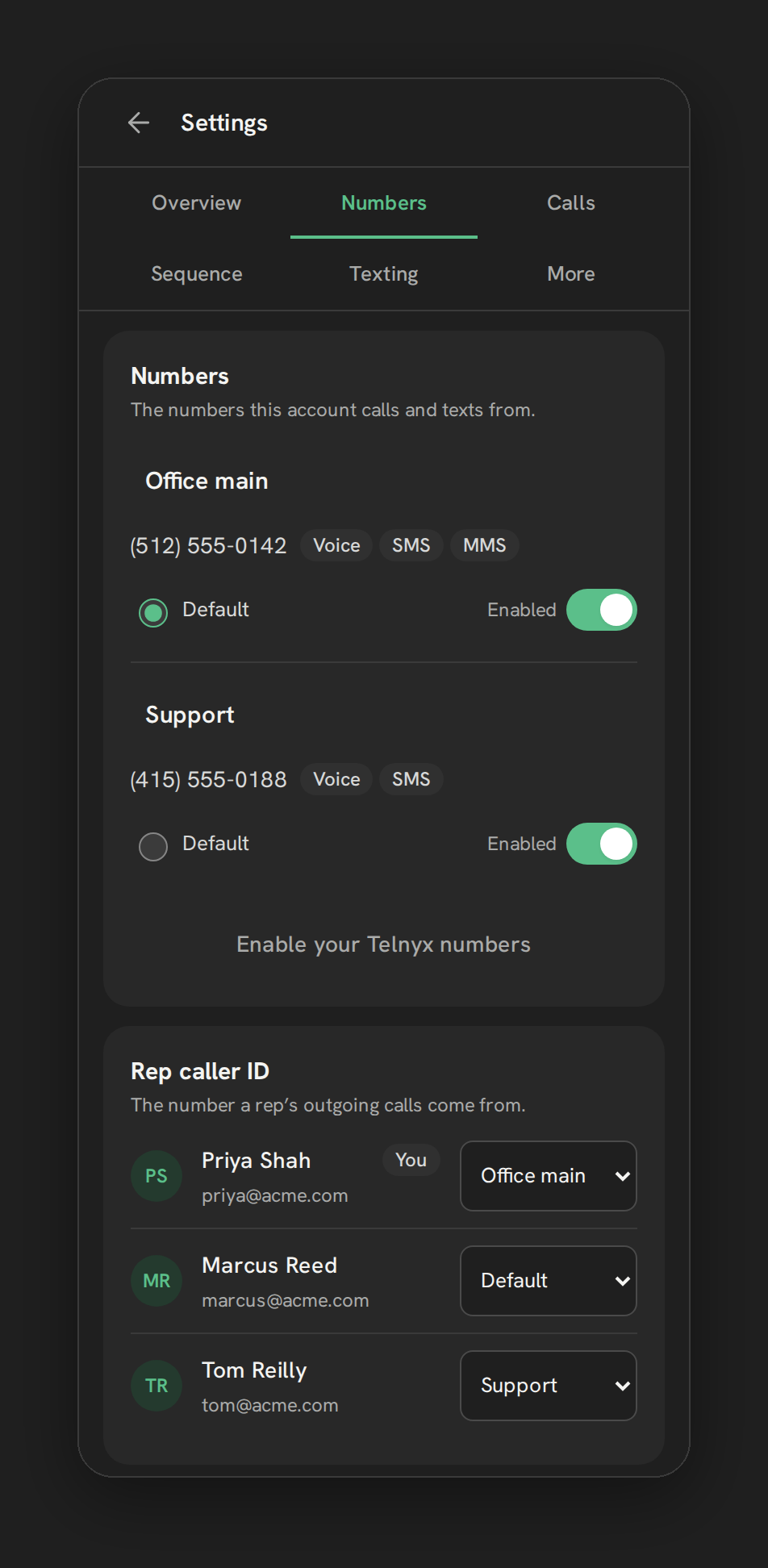
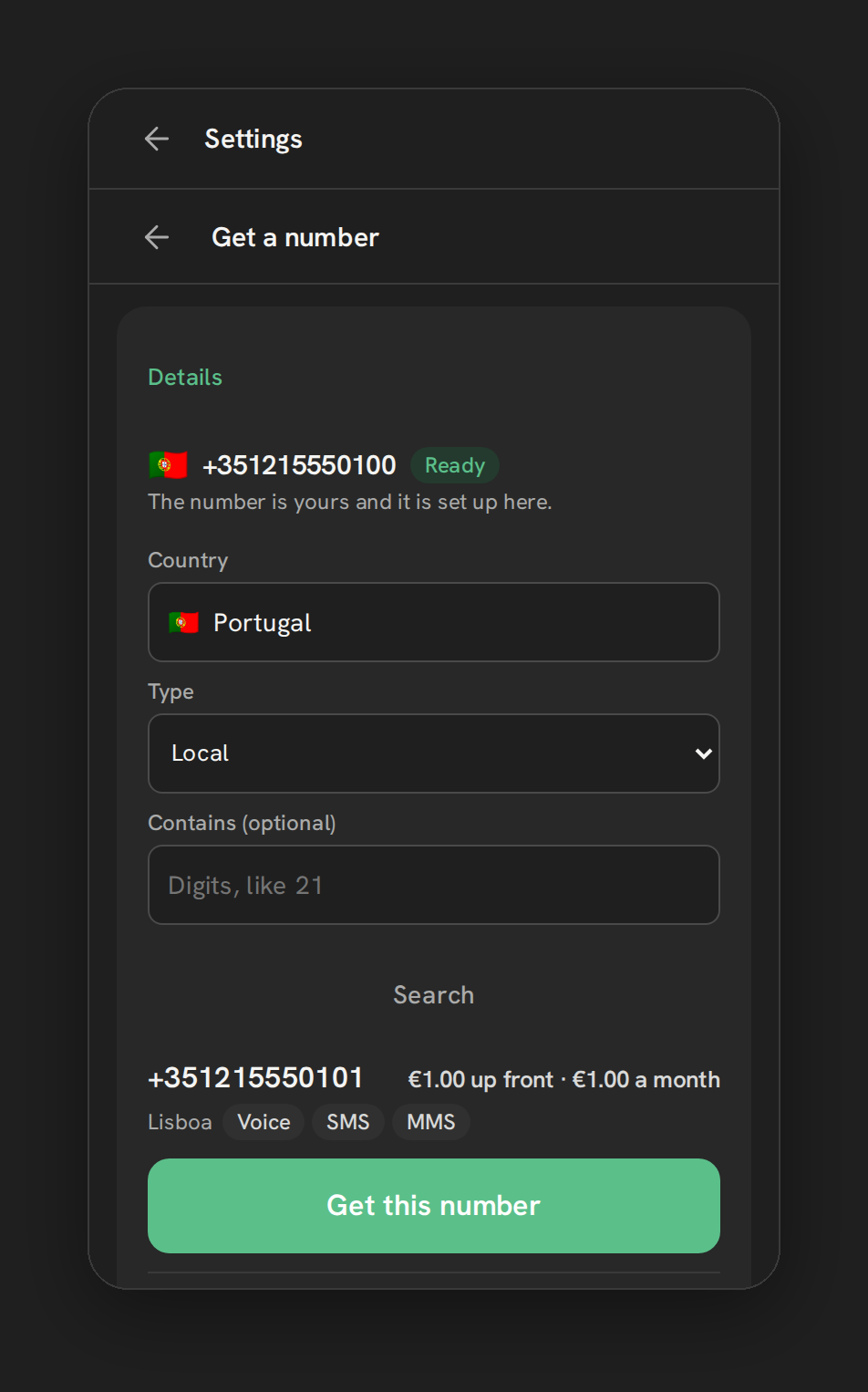
- Complete setup for that business account. Connect Telnyx, then enable or buy the number you want to use.
Agency installation and business account use are different things. The agency controls installation; your team uses Phone Clover inside each selected business account. You do not choose between an agency-only phone and a business account phone.
Plans and account limits
Texting, Base and Pro each cover one business account. Growth 5 covers up to five, Growth 10 up to ten, and Scale up to twenty. Each covered business account on a bundle gets Pro features.
Installing into another business account does not increase your plan's limit. If there is no available slot, Phone Clover blocks Telnyx connection and use of the plan's features there. Ask the agency administrator to check the subscription and covered accounts.
Signing in after install
Team members use their existing your CRM login. Open the app from the installed business account; Phone Clover uses that signed-in identity and role. Installation does not give every team member administrator permissions.
Finish setup
- Connect your Telnyx account.
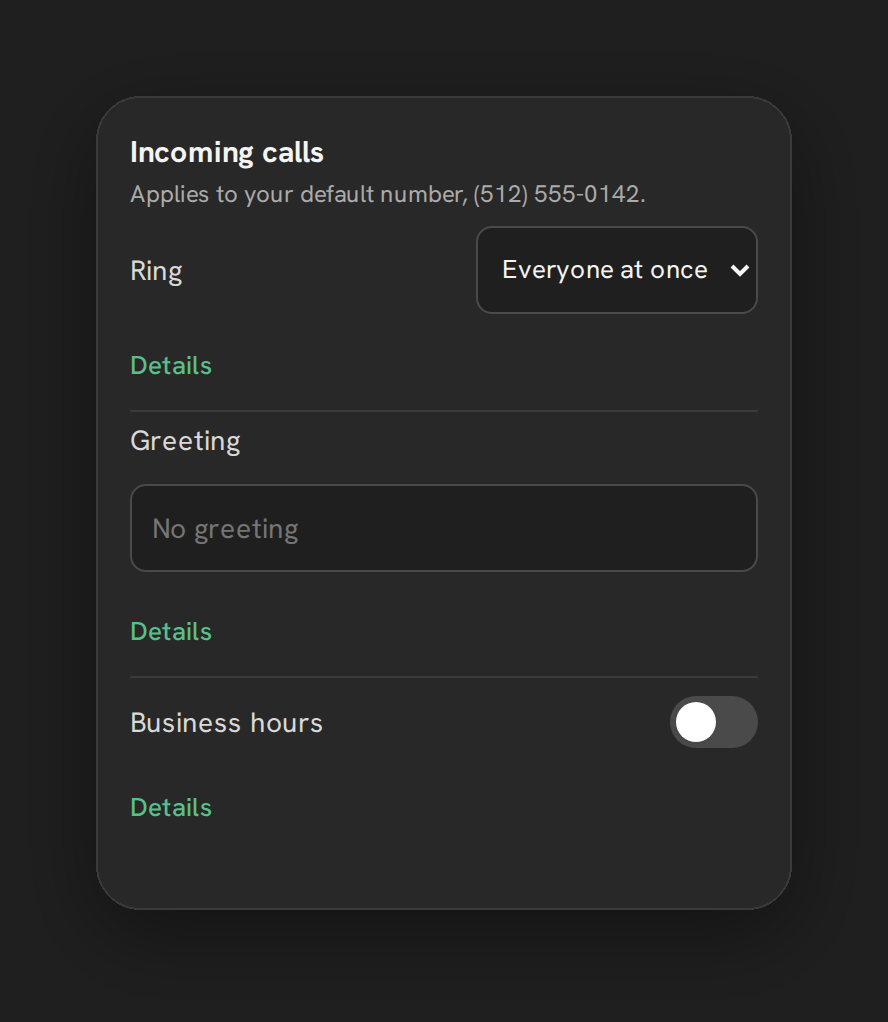
- Enable your first number or buy a number.
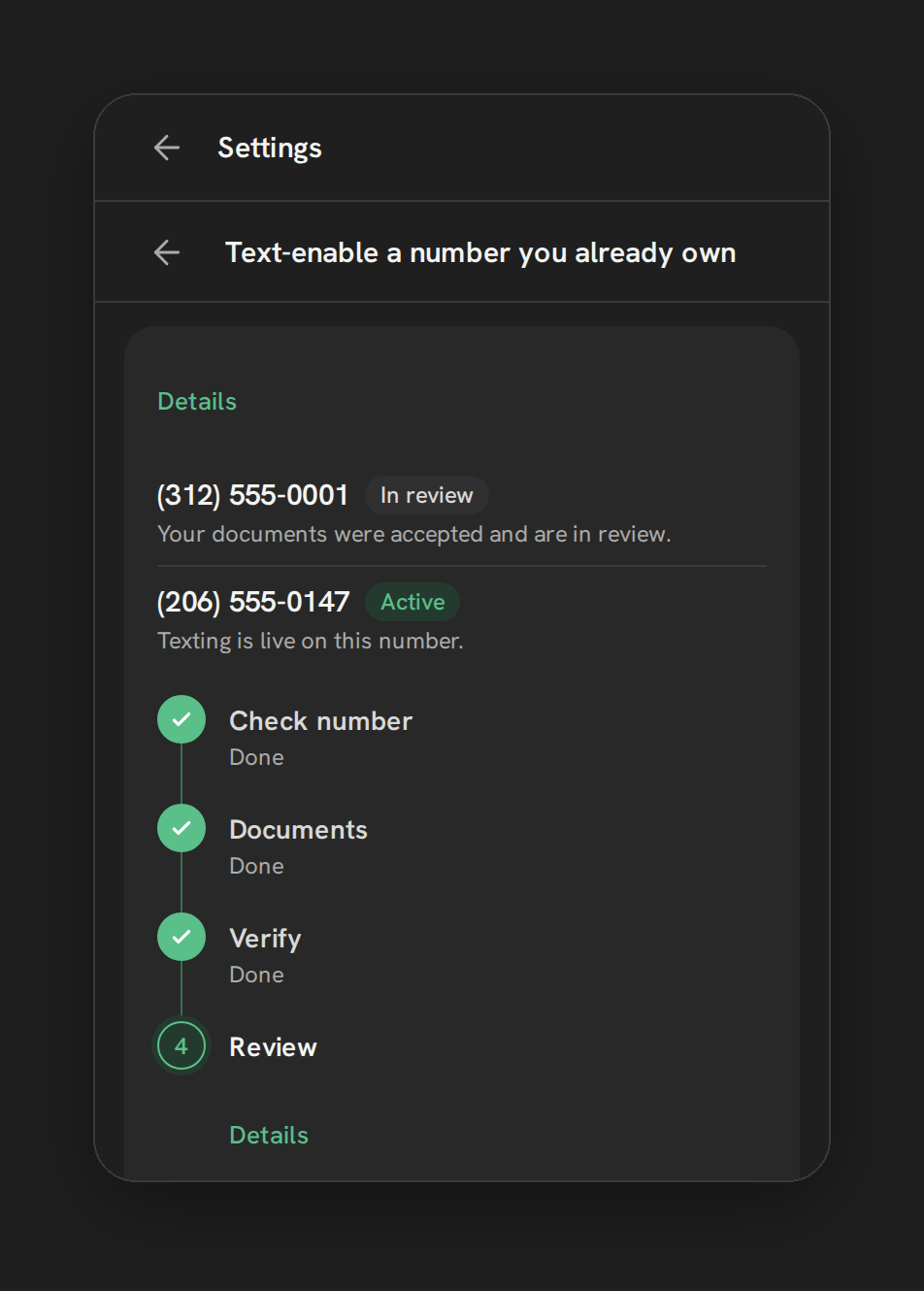
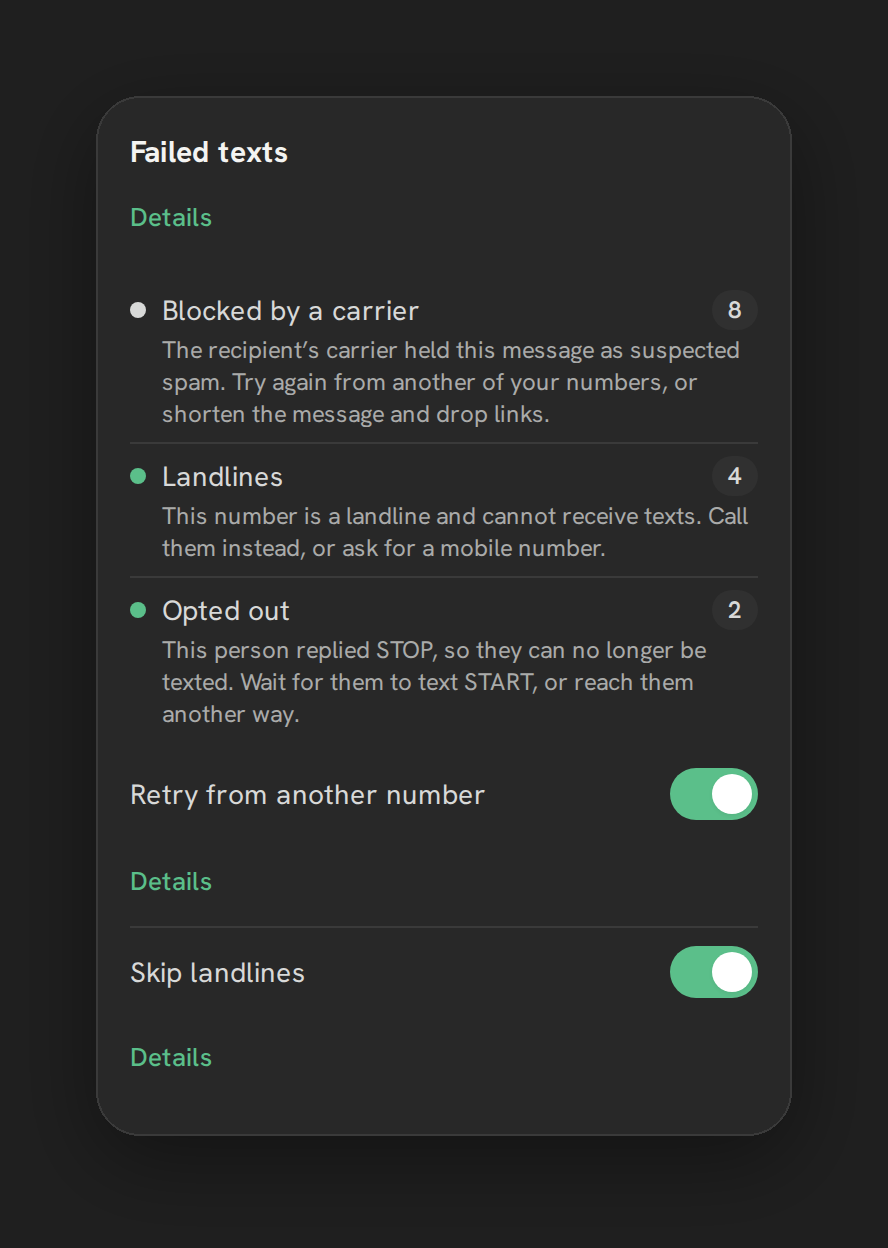
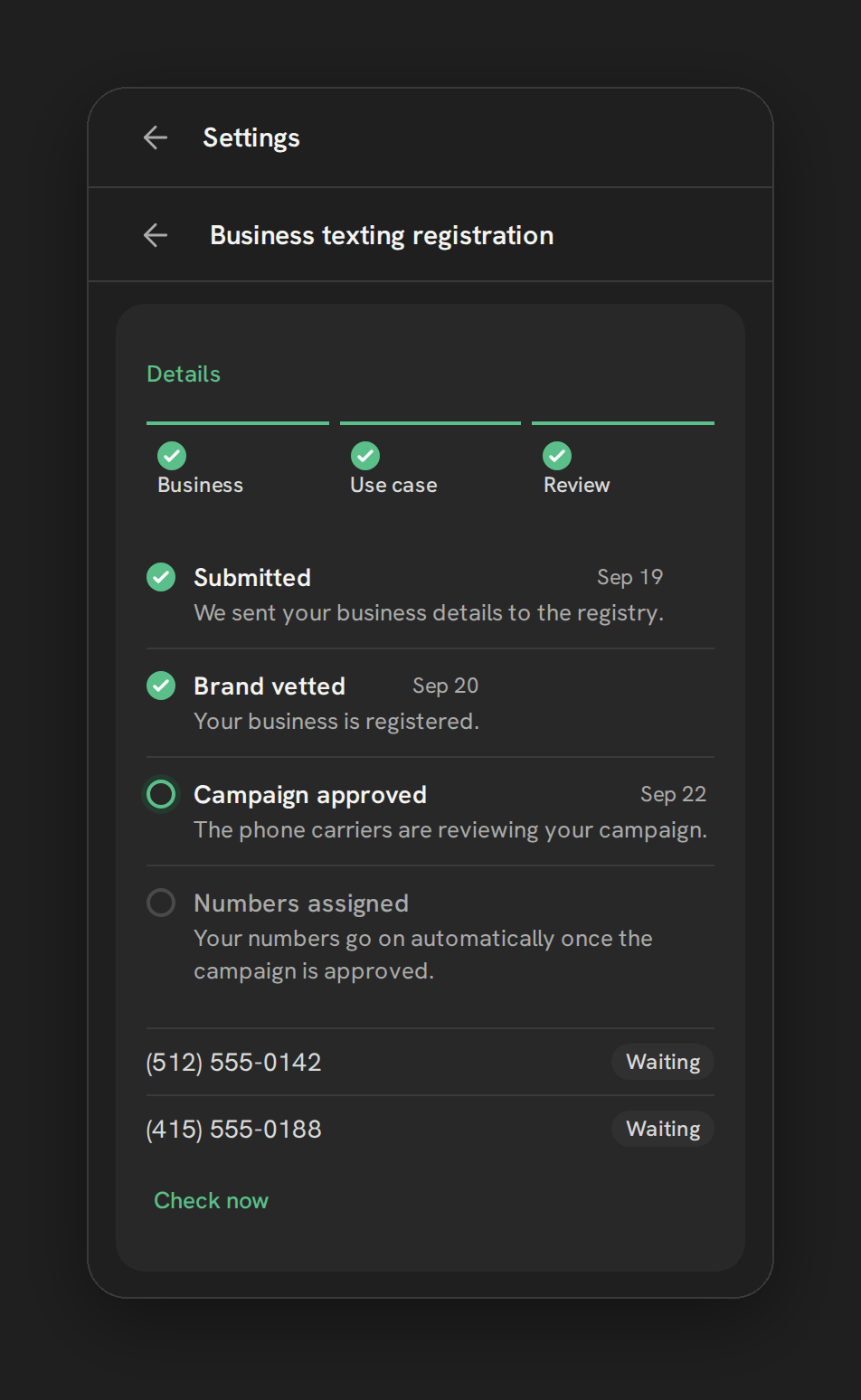
- For texting, select Phone Clover as the SMS provider in your CRM and complete the registration required for your number.
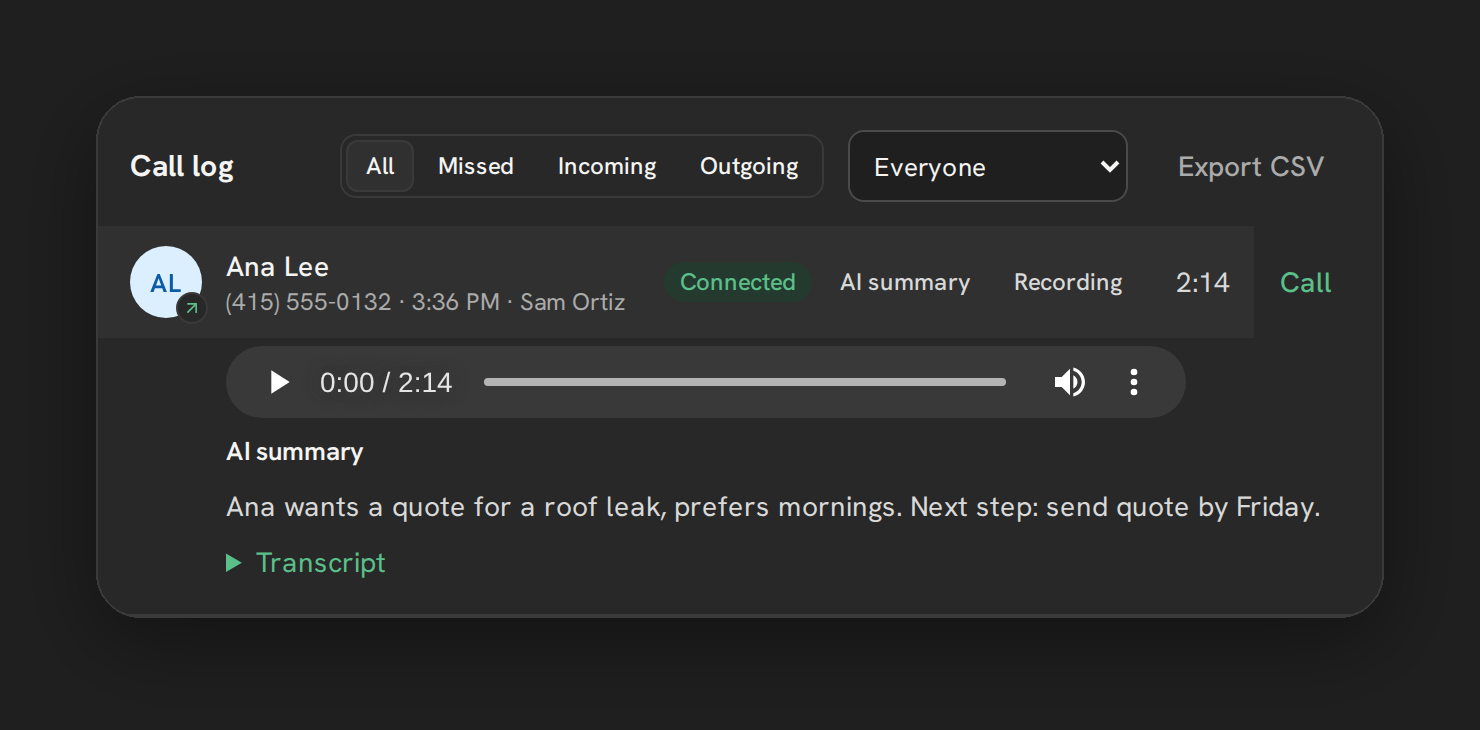
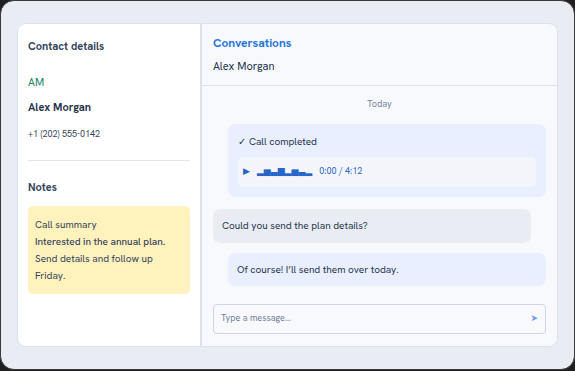
- Make an outbound and inbound test call. Check audio, routing and any recording settings you enabled.
Updates and troubleshooting
Check for app updates first. Ask the agency administrator to check Phone Clover in the agency's App Marketplace and in the affected business account. Complete any update prompts shown in either place, then reload your CRM.
A business account is missing the app. Check that the agency installed it for that specific business account, that the user has access to it, and that the plan has an available slot. Merely opening an unselected business account does not install the app.
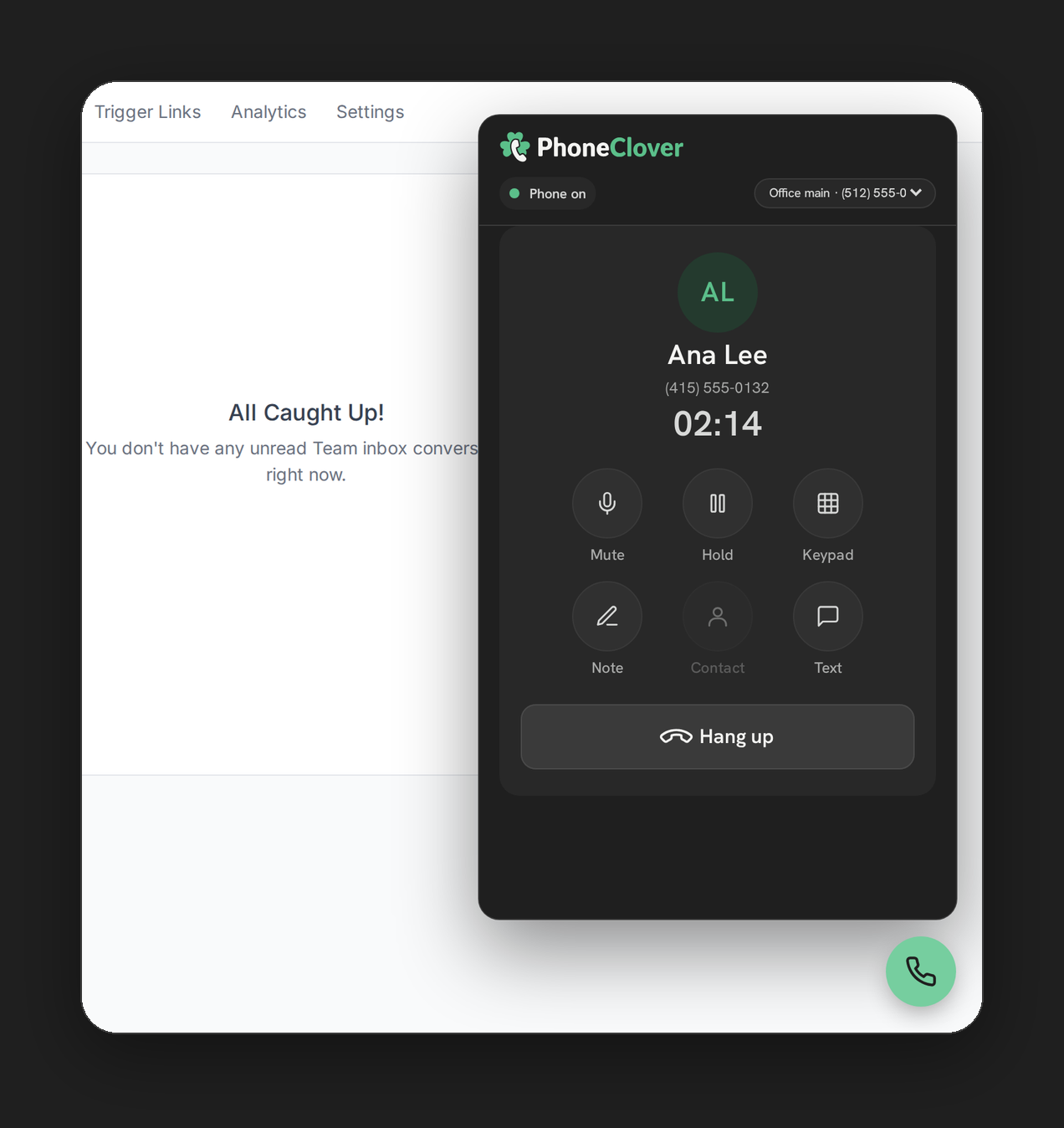
The floating widget is missing. It should appear once Phone Clover confirms the installation, even before Telnyx is connected or a number is enabled. Open the sidebar Phone Clover page to check installation and sign-in, then reload your CRM. See No incoming call popup.
Reinstalling after uninstalling. Do not assume reinstalling restores all previous data. Uninstalling schedules deletion of app-held data; once deletion has started or finished, reinstalling may require fresh setup. Your Telnyx account and numbers remain with Telnyx. See our Privacy Policy for retention details.